WotLK FPS & Crash Fixes: What Actually Works
I run an i7-13700 and a 3080 Ti on a Gen4 NVMe, and I still drop to 30 FPS at the Orgrimmar bank. Here's why a 2008 client does that to a modern PC, and everything I've actually done about it — the memory patch, the three settings that matter, and the ReShade preset I still run on top.
For years I assumed my stutter in Dalaran, Orgrimmar and Stormwind meant I'd set something up wrong. I hadn't. My machine is an i7-13700, an EVGA RTX 3080 Ti FTW3 and a Samsung 980 Pro Gen4 NVMe — a genuinely fast 2026 build — and the Wrath client still can't keep 60 FPS in a busy capital. Once I understood why, the fixes stopped feeling like guesswork. Every one of them is about doing less work on the one part of the client that can't scale, and staying under a memory limit that hasn't moved since 2008. This guide is written around the realm I play on, where the population makes all of this worse, but every fix here applies to any 3.3.5a client.
1.It's not your PC — it's the engine
Wrath of the Lich King shipped in 2008 on an engine that dates back to 2004, and patch 3.3.5a — the version every private server runs — is a 32-bit program. Two hard limits fall out of that, and no amount of hardware removes them:
- One CPU thread does the heavy lifting. The client runs its world simulation and rendering on a single core and submits almost every object on screen as its own individual Direct3D 9 draw call. A capital city at peak is thousands of players, pets, mounts and props — thousands of draw calls, one core, no help from your other fifteen. Your GPU spends most of that time waiting.
- A 32-bit process can address 2 GB of memory. Full stop. Every texture, model, sound and addon lives inside that 2 GB. Fill it and the client doesn't slow down — it crashes.
This is why a faster GPU barely helps, why more system RAM does nothing, and why a Gen4 SSD only shortens load screens. 30 FPS in a packed city is normal on a 4090. The good news: because the ceiling is the client, the fixes are cheap and they're the same for everyone.
2.Break the 2 GB wall (do this first)
The 2 GB cap is a leftover default, not a real limit. On 64-bit Windows a 32-bit program is allowed to use up to 4 GB — it just needs one flag in its executable header switched on, called Large Address Aware. Wrath's Wow.exe ships with it off.
Two tools flip that flag. They do the exact same thing to the file, so pick either:
- NTCore's "4GB Patch" (from ntcore.com) — a tiny tool: run it, point it at
Wow.exe, done. It writes aWow.exe.Backupautomatically. This is the one I use; it has never failed on me where the other tool sometimes doesn't take. - "Large Address Aware" (the GUI utility) — open it, select
Wow.exe, tick "allow more than 2 GB", save.
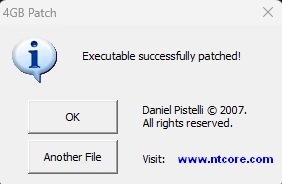
NTCore's 4GB Patch — one dialog, and it's done. It also drops a Wow.exe.Backup next to the original.
To confirm it worked: stand in a busy city, open Task Manager, and on the Processes tab watch the Memory column for World of Warcraft. If it climbs past 2,000 MB without crashing, the patch is live — the process even labels itself "(32 bit)" so you know exactly what you're looking at.
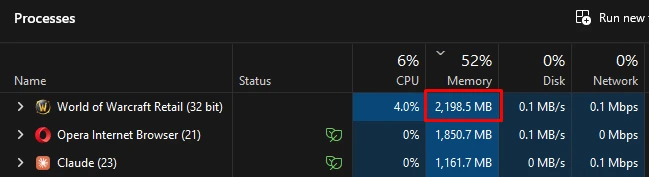
2,198 MB in use — well past the old 2 GB ceiling, and stable.
A client update or a fresh download replaces Wow.exe and resets the flag — re-run the patch every time. If your launcher swaps the executable, patch the copy it actually launches. This one change removes most of the random ERROR #132 and "not enough memory resources are available" disconnects, especially if you run HD models or a heavy UI.
3.The three settings that actually matter
Open System → Video and go to the Effects tab. Most of the sliders in there cost you almost nothing on modern hardware. Three of them cost you everything:
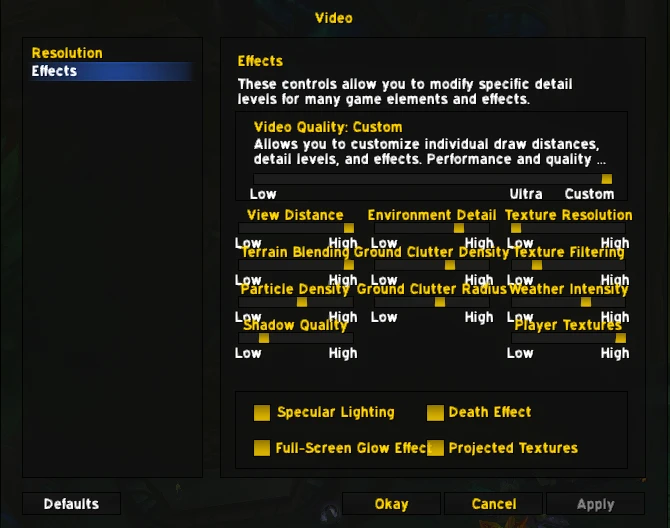
The Effects tab. Set Video Quality to "Custom" first so the individual sliders unlock.
- Shadow Quality — the single biggest FPS drain in this engine. Set it to Low, or turn it off entirely. In a city this alone is often 15–25 FPS.
- Texture Resolution — leave this at Low, or High at most, and never Ultra, especially with any HD texture pack installed. This is the crash setting: high-resolution textures fill your 2 GB pool faster than anything else, and a full pool is a hard crash, not a stutter. If you get frequent disconnects in cities and you're on Ultra textures, that is almost certainly your cause.
- Environment Detail and View Distance — pull both to roughly a third. Together they control how much of the world is drawn every single frame, which is pure load on that one thread.
Also worth dropping: Ground Clutter Density and Ground Clutter Radius to minimum, Particle Density to low-mid (full particle density in a 25-man is brutal), Weather Intensity to Low, and the Full-Screen Glow Effect and Projected Textures checkboxes off.
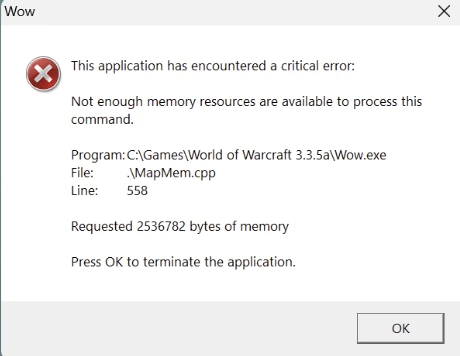
This is what a full 2 GB pool looks like — not a stutter, a hard exit. Almost always textures.
What you can keep: your native resolution and anti-aliasing are cheap here — you are not GPU-limited in the places that hurt, so there is no reason to run the game at a lower resolution to chase frames. On the Resolution tab, the only performance lever is Multisampling; leave everything else as you like it.

Same spot, same character — before and after the settings pass. 25 → 88.
4.The ElvUI and WeakAuras tax
Every addon you load lives inside that same 2 GB. It's 2026 — a full ElvUI install plus a class WeakAuras pack plus DBM plus a bag addon can be holding a few hundred megabytes between them, and some of them leak more on every /reload. That's a real slice of your entire budget gone before the game draws a single frame.
You don't have to give up your UI. But:
- Run the 4 GB patch (section 2) — it matters roughly twice as much if you run a full interface replacement.
- Type
/reloadafter long sessions, especially in a raid — it clears accumulated addon memory. - Prune WeakAuras you don't actually watch. A 300-aura imported pack for a spec you play at 20% uptime is 300 auras of memory and per-frame work you're carrying for nothing.
- Check addon memory in-game (or with an addon like AddonUsage) and cut the biggest offenders you don't need.
5.Rendering mode: one free change now, Vulkan later
The free one: type this into chat and then fully restart the client —
/console gxApi d3d9ex
"D3D9Ex" is a newer path to the same Direct3D 9. It handles memory better, recovers cleanly when you alt-tab, and on its own clears a lot of the "device lost" crashes. There's no real downside; if the game refuses to start, set gxApi back to d3d9 in config.wtf.
The bigger rendering fix is DXVK — a wrapper that translates the client's Direct3D 9 calls to Vulkan. It won't necessarily raise your peak FPS where things were already fine, but it smooths out frametimes, kills the micro-hitching, and makes broken zones like Dalaran playable again. It's more involved to set up and easier to get wrong — including a Windows Defender false positive that scares everyone — so it has its own page: Part 2 — DXVK for WotLK 3.3.5a. Do everything here first; the memory patch plus these settings plus D3D9Ex already gets most people to a stable, playable place.
6.config.wtf fine-tuning
config.wtf (in your WTF folder) stores every setting the client has, including ones with no in-game slider. Close the game, back the file up, then add or edit these lines:
SET shadowMode "0"
SET worldBaseMip "1"
SET M2Faster "1"
SET weatherDensity "0"
SET groundEffectDensity "16"
SET groundEffectDist "1"
SET farclip "477"
In order: shadows off, lower base world-texture detail (a real memory saving), faster model rendering, no weather, minimal ground clutter and clutter draw distance, and a shorter view distance. These are starting points — raise farclip back up if the world feels too closed in. If you ever hit "reset to defaults" in the in-game options, you'll need to reapply them.
7.HD models: the honest trade
The Warlords and Legion character-model backports look fantastic, and they will cost you FPS and memory. They add geometry and higher-resolution textures the engine was never built to stream in that volume, and a packed city full of HD models is exactly its worst case. If you want them:
- The 4 GB patch (section 2) is not optional. HD models on a 2 GB client means crashing, reliably.
- Keep in-game Texture Resolution lower to give yourself headroom.
- If you still crash, you can disable specific HD patch archives — rename
patch-F.MPQ(andpatch-enGB-F.MPQfor English clients) in yourDatafolder — to find which one is too heavy for your setup. - A lighter middle ground: texture-upscale-only packs that sharpen the existing art without adding new models. Most of the visual lift, far less of the cost.
8.Don't benchmark in Dalaran
Dalaran is genuinely broken — it's badly optimized even by 3.3.5a standards, and everyone's FPS tanks there regardless of hardware or settings. Don't use it to test changes or you'll conclude nothing works. Pick a fixed spot instead — the Orgrimmar or Stormwind bank at a normal-population hour — face the same direction every time, toggle the FPS counter with Ctrl+R, and change one thing at a time.
9.Making it look good anyway: ReShade
Everything above makes the game run better and, honestly, plainer. ReShade is how I get the look back. It's a post-processing layer that sits between the client and your GPU — it drops a d3d9.dll into your WoW folder and adds sharpening, richer colour, contrast and subtle bloom, whatever the preset defines. It has a small FPS cost: single digits for a light preset like mine. Heavy effects like ambient occlusion or depth of field cost a lot more — my preset doesn't use them, on purpose, because this is a performance guide. What it does run is Contrast Adaptive Sharpen, a touch of Vibrance, a subtle bloom, SMAA anti-aliasing, a light tonemap and deband — all cheap.
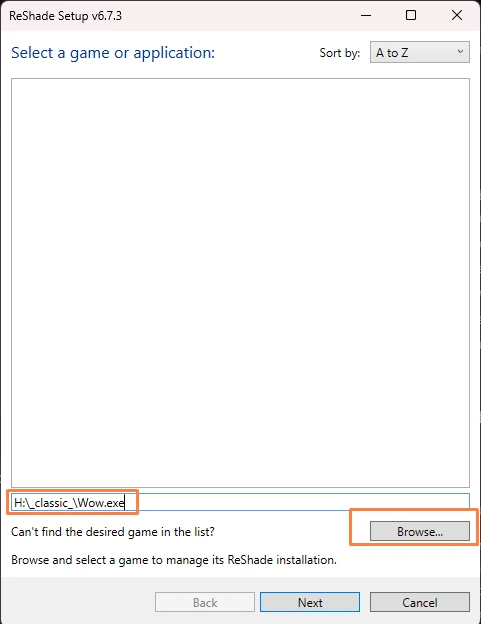
Browse to your Wow.exe.
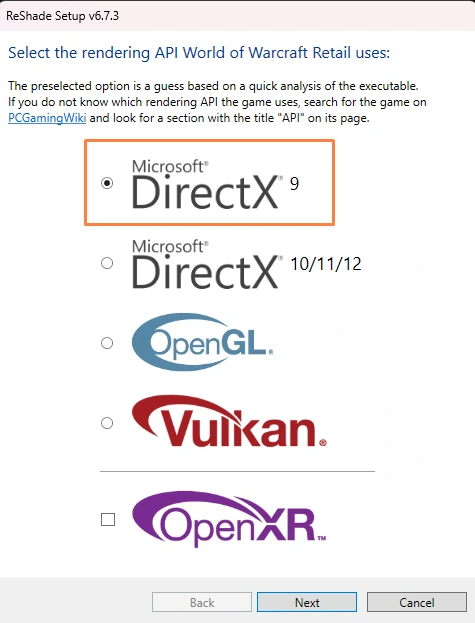
Pick DirectX 9 — not 10/11/12.
- Download ReShade from reshade.me and run the installer.
- Point it at your
Wow.exeand choose DirectX 9. - When it asks which effect packages to install, the standard set is enough.
- Put my preset file (below) in your WoW folder.
- Launch WoW, press
Hometo open the ReShade overlay, and pickrealnibba-reshade.inifrom the dropdown at the top.
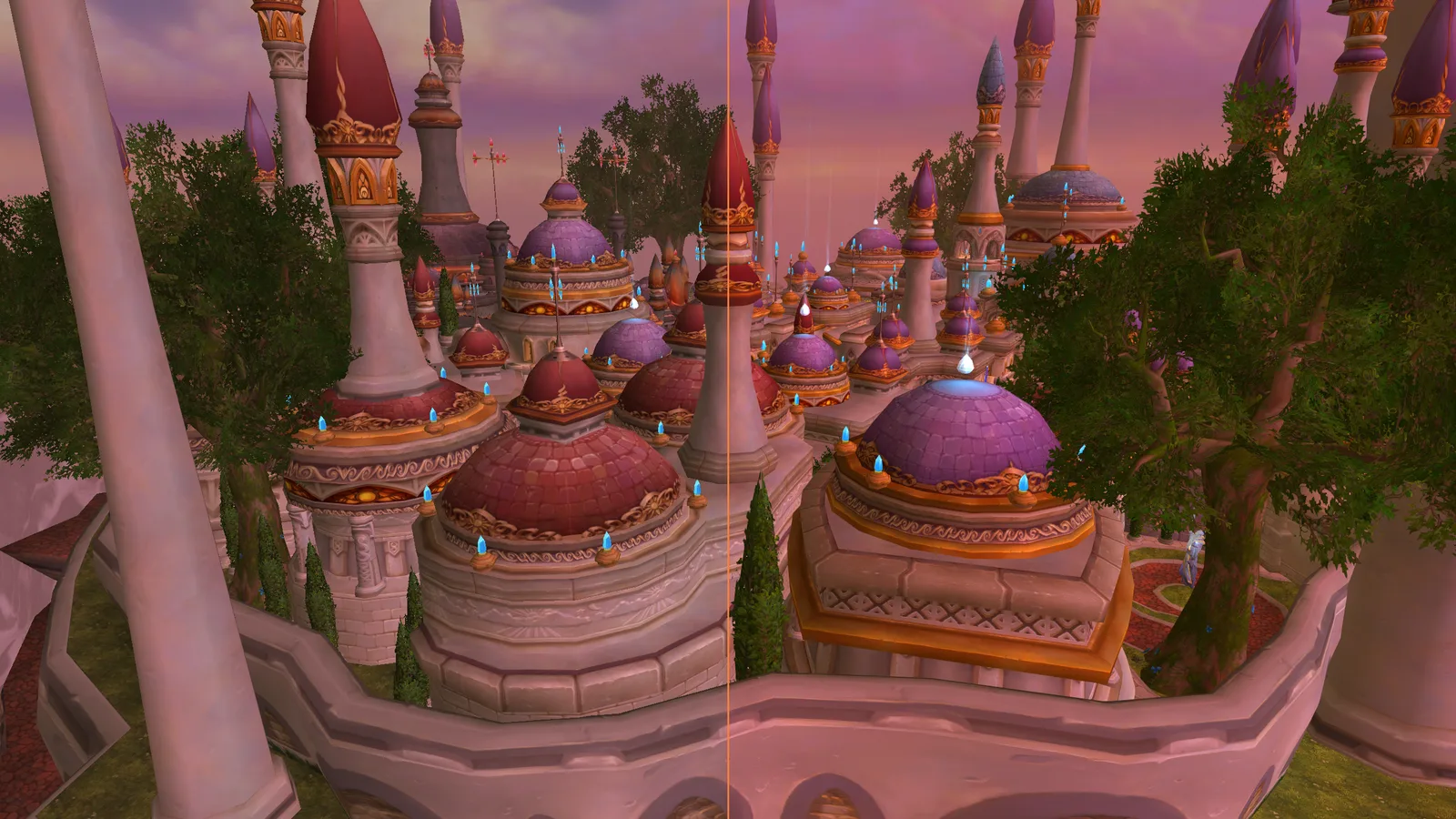
Same frame, split down the middle — vanilla on the left, my preset on the right.
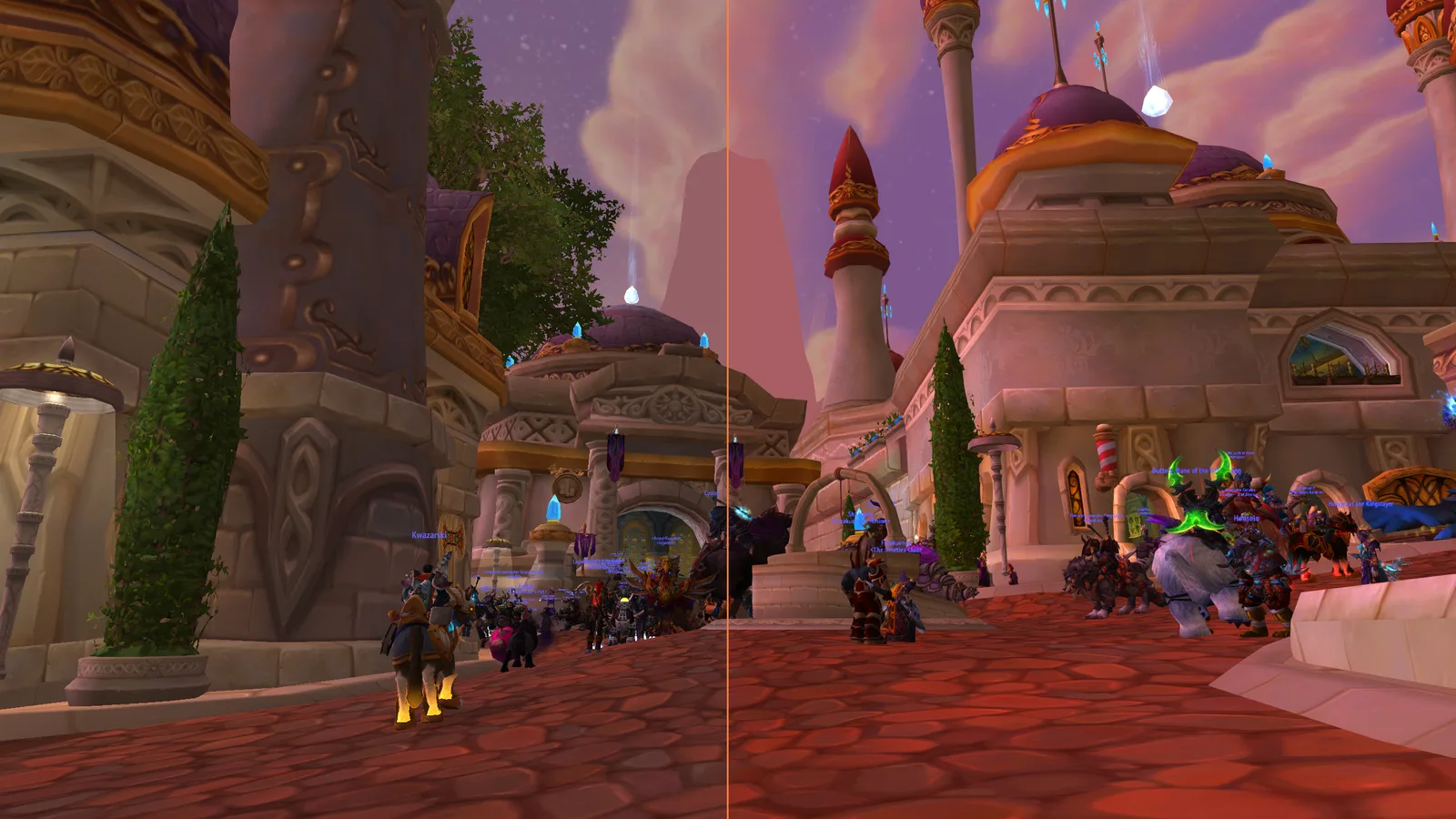
It holds up in a packed city too — more depth, cleaner edges, no real frame cost.
If you also run a separate d3d9.dll wrapper (some HD setups do), it and ReShade will fight over the same filename. The fix is to move ReShade's files into a scripts subfolder — there are per-setup instructions for that on the community forums. To make your own before/after shots like the ones above, enable the Splitscreen technique in the ReShade overlay.
10.Start here
If you do nothing else, do these five, in order — it's about ten minutes of work for roughly 90% of the improvement:
- Run the NTCore 4GB Patch on your
Wow.exe. - Set Shadows to Low or Off, and Texture Resolution no higher than High.
/console gxApi d3d9ex, then fully restart.- Trim ElvUI and WeakAuras, and
/reloadbetween raid bosses. - Test your changes in Orgrimmar, never in Dalaran.
The rest — config.wtf tuning, ReShade, and DXVK / Vulkan in Part 2 — is refinement on top of that.
11.Common questions
Why does WoW 3.3.5a run badly on a powerful PC?
The client is a 32-bit program on a 2004-era engine, running its world and rendering on a single CPU thread. A busy city bottlenecks one core while your GPU sits idle — 30 FPS in Orgrimmar or Dalaran is normal even on a 4090. A faster GPU, more RAM or an SSD barely move it.
Does the 4GB patch actually help WotLK 3.3.5a?
Yes. It flips one flag in Wow.exe so the 32-bit client can use up to 4 GB instead of 2 GB on 64-bit Windows, which removes most of the random ERROR #132 and "not enough memory resources" disconnects. It's mandatory if you run HD models or a heavy ElvUI setup.
What texture resolution should I use in WotLK 3.3.5a?
Low, or High at most — never Ultra, especially with an HD texture pack. High-res textures fill the 2 GB pool faster than anything else, and a full pool is a hard crash. Frequent city disconnects on Ultra textures are almost always this.
Why is my FPS so bad in Dalaran?
Dalaran is badly optimized even by 3.3.5a standards — everyone drops frames there regardless of hardware. Don't benchmark in it; test at the Orgrimmar bank instead. DXVK (Part 2) is the one thing that meaningfully helps Dalaran.
Is this safe for my account?
The 4GB patch, config.wtf edits and video settings are all normal, allowed client changes. ReShade and DXVK (Part 2) are client-side rendering layers — no memory reading, no automation — used widely across the private-server community, though as third-party modifications they're ultimately your call.